Cinema HQ Guide
Cinema HQ on Firestick: The Downloader Route
Get Cinema HQ on a Fire TV Stick with the Downloader app, from developer options to first launch.
 By Maria Reyes · Streaming App Reviewer
Turn on installs from unknown sources
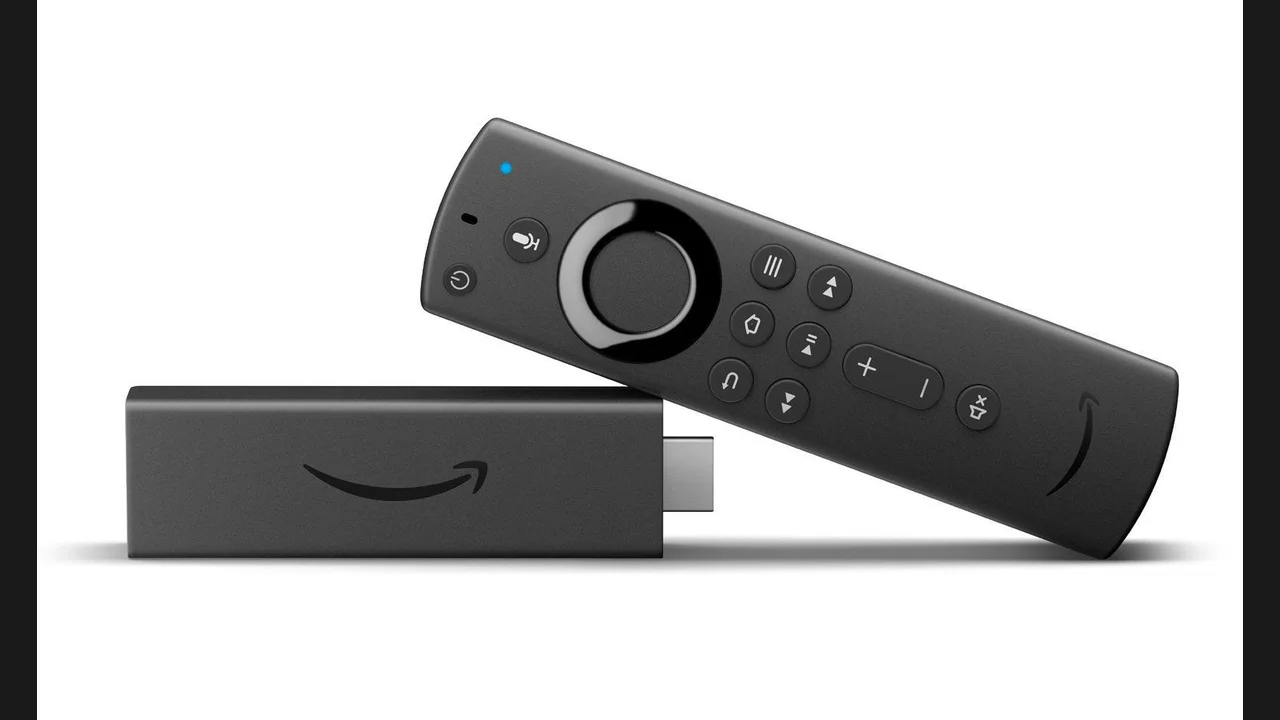
If you are new here, start from the Cinema HQ app homepage, then follow this guide. On your Fire TV Stick, open Settings, then My Fire TV, then Developer Options, and switch on Apps from Unknown Sources. On newer Fire TV software the Developer Options row is hidden; tap your device name in About seven times to reveal it. This is the TV version of the phone permission, and it is needed because Cinema HQ is sideloaded.
Install Downloader and fetch the file
Open the Amazon Appstore, search for Downloader, and install it. Open Downloader, enter the code 9013501, and let it fetch the Cinema HQ file. Downloader is a general sideloading tool, and the code simply points it at the file. When the download finishes, tap Install, then Done, then delete the file copy Downloader offers to remove, since the app is already installed. The Android TV setup guide covers the next step in detail.
Open and learn the remote layout
Find Cinema HQ in your apps list and open it. The home rows are built for a remote: move across rows, open a title, and pick a source with the select button. Start with search for a known title, and keep the first session short while you learn where the sections live. For a related setup, see Real-Debrid setup. The file itself is on the download page.
Quick Answers
What is the Downloader code for Cinema HQ?
The code 9013501 loads the Cinema HQ file inside the Downloader app on Fire TV.
Is Cinema HQ free on Firestick?
Yes. The app is free, and no account is needed to browse or play from free sources.
Why can I not find Developer Options?
Newer Fire TV software hides it. Tap the device name in About seven times to reveal the row.